 Zum Inhalt springen

Willkommen auf der JuBi-Online

Please find below the english version.
So funktioniert’s
Wir empfehlen im Vorfeld zur jeweiligen Online-Messe den eigenen virtuellen Messe-Raum vorzubereiten und die Technik zu testen (bitte immer Google Chrome als Browser verwenden). Dafür kannst du dich mit deinen Zugangsdaten auf unserer Online-Plattform einloggen (oder dir ein neues Profil erstellen).
Aussteller*innen-Profil
Damit Besucher*innen dein Profil deutlich als Ausstellende wahrnehmen, empfehlen wir, das Logo deiner Organisation als Foto zu verwenden. Dieses sollte hierfür quadratisch zugeschnitten werden (empfohlen: 300×300 Pixel im jpg oder png-Format).
Die Profilfelder idealerweise wie folgt ausfüllen (kann über „Profile“ jederzeit geändert werden):
First Name: „Vorname + ggf. Nachname“ (Max)
Last Name: „| Organisationsname“ (| Musterorganisation)
Das Profil wird dann so angezeigt: „Max | Musterorganisation“.
Navigation
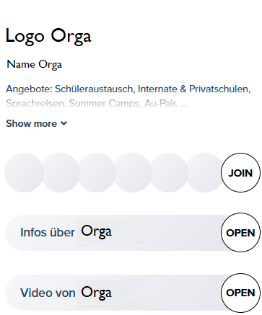
Als Aussteller*in hältst du dich in der Regel in deinem gebuchten virtuellen Aussteller*innen-Raum auf. Logge dich dafür auf unserer Plattform ein und suche deinen Raum in der linken Spalte unter “Beratungen & Vorträge” (mit eurem Namen + Logo).
Gerne könnt ihr für individuelle 1zu1-Gespräche in die „Breakout Rooms“ ausweichen, diese findet ihr oben neben „Beratungen & Vorträge“. Diese Räume sind auf 2 Besucher*innen limitiert (Hosts nicht mitgezählt).
Du betrittst einen Raum, indem du auf den Button „JOIN“ klickst und verlässt ihn über den kleinen roten Button links unten.
Host-Funktionen
Bitte teilt uns spätestens 96 Stunden vor einer Online-Messe über info@weltweiser.de mit, welche Accounts/Mailadressen mit den nützlichen Host-Rechten ausgestattet werden sollen (es können beliebig viele Hosts pro Organisation aktiv sein). Folgende Host-Funktionen stehen zur Verfügung:
- Mute Participants (Stummschalten): Um Hintergrundgeräusche zu minimieren, lassen sich über das Zahnrädchen unten links alle oder einzelne Besucher*innen in einem Raum stummschalten. Zudem können Kameras deaktiviert werden.
- Lock Table: Wenn ihr ungestört mit einer Person oder der bestehenden Gruppe in eurem Raum weiterreden wollt, dann könnt ihr diesen über das grüne Schloss-Symbol unten links „abschließen“ – so lange ihr wollt.
- Kick user from table: Es lassen sich einzelne Besucher*innen aus eurem Raum entfernen, indem ihr über die Suchfunktion (Lupe oben rechts) auf den Usernamen und anschließend auf „Kick user from table“ klickt.
→ Bei massivem Fehlverhalten einzelner Besucher*innen informiert bitte direkt das Team von weltweiser (Kontaktdaten siehe unter Support & Kontakt).
Technik
Die Plattform ist auf Google-Chrome optimiert. Nutze für die Teilnahme auf der JuBi-Online einen Desktop-PC oder Laptop und überprüfe im Vorfeld jedes Messe-Termins, ob die Technik in eurem Setting funktioniert!
Video & Audio
Platziere den Computer auf einem Tisch und positioniere dich so vor der Kamera, dass du gut zu erkennen bist und dein Gesicht ausreichend ausgeleuchtet ist. Vermeide dabei Lichtquellen, die sich hinter dir befinden und in die Kamera leuchten, wie beispielsweise Fenster mit Lichteinfall. Um im Video-Chat deutlich als Aussteller*in erkennbar zu sein, empfehlen wir ein Roll-Up-Display im Hintergrund aufzustellen und ggf. ein Oberteil mit dem Logo deiner Organisation anzuziehen.
Für eine optimale Gesprächsqualität solltest du ein kabelgebundenes Headset verwenden (Computerlautsprecher führen mitunter zu einer störenden Audio-Feedback-Schleife).
Teilen des Bildschirms
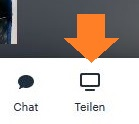
Um den Besucher*innen eine Präsentation oder die Website zu zeigen, teile deinen Bildschirm über den entsprechenden Button. Wir empfehlen, nur zum Weiterblättern auf die nächste Folie zur Präsentation zu wechseln und ansonsten im Chat zu bleiben, um auf eventuelle Rückfragen reagieren zu können.
Optimal ist ein zweiter Bildschirm: hier kannst du das Präsentationsfenster auf einem Bildschirm teilen und auf einem zweiten Screen den Chat mitverfolgen.
Falls ihr ein Video abspielen möchtet, testet dies bitte vorher über die Plattform. Idealerweise werden Videos über den Browser (z.B. YouTube) abgespielt, damit der Ton einwandfrei funktioniert.
Chat-Funktion
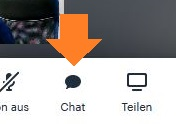
Die Besucher*innen können ebenfalls über die Chat-Funktion mit den Aussteller*innen in Kontakt treten. Es gibt für jeden Raum den Gruppen-Chat (diesen findest du in der unteren Leiste), dort kann jeder etwas schreiben – für alle lesbar im Raum.

Es gibt zusätzlich auch den Privat-Chat bzw. Messenger, der exklusiv zwischen zwei Nutzer*innen funktioniert. Diesen findest du rechts oben über das Sprechblasen-Symbol. Hier kannst du auch einzelne Besucher*innen anschreiben, z.B. um Kontaktdaten auszutauschen.
Um Besucher*innen direkt anzuschreiben, fahre über deren Icon und drücke auf das erscheinende Message-Symbol.
Support & Kontakt

Bei technischen Problemen: Bitte zunächst über den Technical Support Chat (oben rechts auf der Plattform über das „Rettungsring“-Symbol) alle Eventualitäten ausschließen und bei Fortbestehen des Problems den Technischen Support von MeetAnyway kontaktieren, der von Montag bis Freitag zwischen 9 und 17 Uhr zu erreichen ist.
Solltest du vor der Veranstaltung Fragen haben, erreichst du uns Mo-Fr unter info@weltweiser.de oder +49 228 391 84 784.
Bei akuten Problemen während der Messe wende dich an den Technischen Support von MeetAnyway, zudem ist das weltweiser-Notfalltelefon ab 30 Minuten vor der jeweiligen Veranstaltung unter der Telefonnummer +49 2306 / 978 241 zu erreichen.
Welcome to the JuBi-Online
How it works
Prior to the start of the online-fair, we recommend preparing and testing the functionality and technology of your own virtual booth. In order to access the booth, visit our online-platform (please always use Google Chrome as your browser) and login with your login credentials (or create a new profile).
Exhibitor profile
We recommend using your company’s logo as a profile picture. In doing so, the visitors will be able to distinguish you from other fair visitors. The logo should be cut to a square size (recommendation: 300×300 pixel and jpg- or png-format).
Recommended settings for a profile as follows (can be changed at any time under “Profile”):
First name: “first name + last name if applicable” (John/Jane)
Last name: “| name of your organization” (| sample organization)
Your profile will thus be displayed as: “John/Jane | sample organization”
Navigation on the platform
As an exhibitor, you will usually stay in your booked virtual exhibitor room. Log in to our platform and look for your room in the left column under “Beratungen & Vorträge” (with your name + logo).
You are welcome to switch to the “Breakout Rooms” for individual 1-to-1 talks, which you will find at the top next to “Beratungen & Vorträge”. These rooms are limited to 2 visitors (not counting hosts).
You enter a room by clicking on the “JOIN” button and leave it via the small red button at the bottom left.
If you want to change the platforms’ language, press the little cogwheel in the left top corner of the screen (when you are in your room) and choose your preferred language under “Sprache”.
Host-function
Please inform us at least 96 hours before an online fair via info@weltweiser.de which (IMPORTANT: already registered) accounts/mail addresses are to be provided with the useful host rights (any number of hosts per organisation can be active). The following host functions are available:
- Mute Participants (Stummschalten): In order to minimise background noise, all or individual participants in a room can be muted via the little cogwheel at the bottom left. Cameras can also be deactivated.
- Lock Table: If you want to continue talking to a person or the existing group in your room without being disturbed, you can “lock” it using the green lock symbol at the bottom left – for as long as you want.
- Kick user from table: Individual visitors can be removed from your room by clicking on the user name in the search function (magnifying glass in the top right-hand corner) and then on “Kick user from table”.
→ In case of serious misconduct of individual visitors, please inform the weltweiser team directly (for contact details, see Support & Contact).
Technical features
The platform is optimised for Google Chrome. Use a desktop PC or laptop to participate in the JuBi-Online and check in advance of each fair whether the technology works in your setting!
Video & Audio
Place the computer on a table and position yourself in front of the camera so that you are clearly visible and your face is sufficiently illuminated. Avoid light sources that are behind you and point into the camera, such as windows with incoming light. In order to be clearly recognisable as an exhibitor in the video chat, we recommend setting up a roll-up display in the background and, if necessary, wearing a shirt with your organisation’s logo.
For the best audio quality, use a wired headset (computer speakers can sometimes cause a distracting audio feedback loop).
Screen sharing
To show a presentation or the website to attendees, share your screen by clicking on the screen share button. We would recommend that you only switch to the next slide of the presentation to scroll on, and otherwise stay in the chat to be able to respond to any questions.
A second screen is an ideal solution: here you can share the presentation window on one screen and follow the chat on a second screen.
If you want to play a video, please test this beforehand on the platform. Ideally, videos are played via the browser (e.g. YouTube) so that the sound works properly.
Chat
Visitors can also contact the exhibitors using the chat function. There is a group chat for each room (you can find it in the bottom bar), where anyone can write something – visible to everyone in the room.
There is also the private chat or messenger, which works exclusively between two users. You can find it in the top right-hand corner by clicking on the speech bubble icon. Here you can also write to individual visitors, e.g. to exchange contact details.
To write to visitors directly, hover over their icon and press the message symbol which appears.
Support & Contact
For technical issues: Please first rule out all eventualities via the Technical Support Chat (at the top right of the platform via the lifebuoy symbol) and, if the problem persists, contact MeetAnyway’s Technical Support, which is available Monday to Friday between 9am and 5pm.
If you have any questions before the event, you can reach us Mon-Fri at info@weltweiser.de or +49 228 391 84 784.
In case of an acute problem during the trade fair, please contact MeetAnyway’s technical support. You can also reach weltweiser’s emergency hotline at +49 2306 / 978 241 from 30 minutes before the respective event.